

HappyHorse Videos API Integration Guide
This article introduces how to integrate with the HappyHorse Videos API. This API supports text-to-video, first-frame image-to-video, reference-image-to-video, and video editing through the unified /happyhorse/videos endpoint and the action parameter.
¶ Application Process
To use the HappyHorse Videos API, first go to the WorldAi Console to obtain your API Token and keep it for later use.
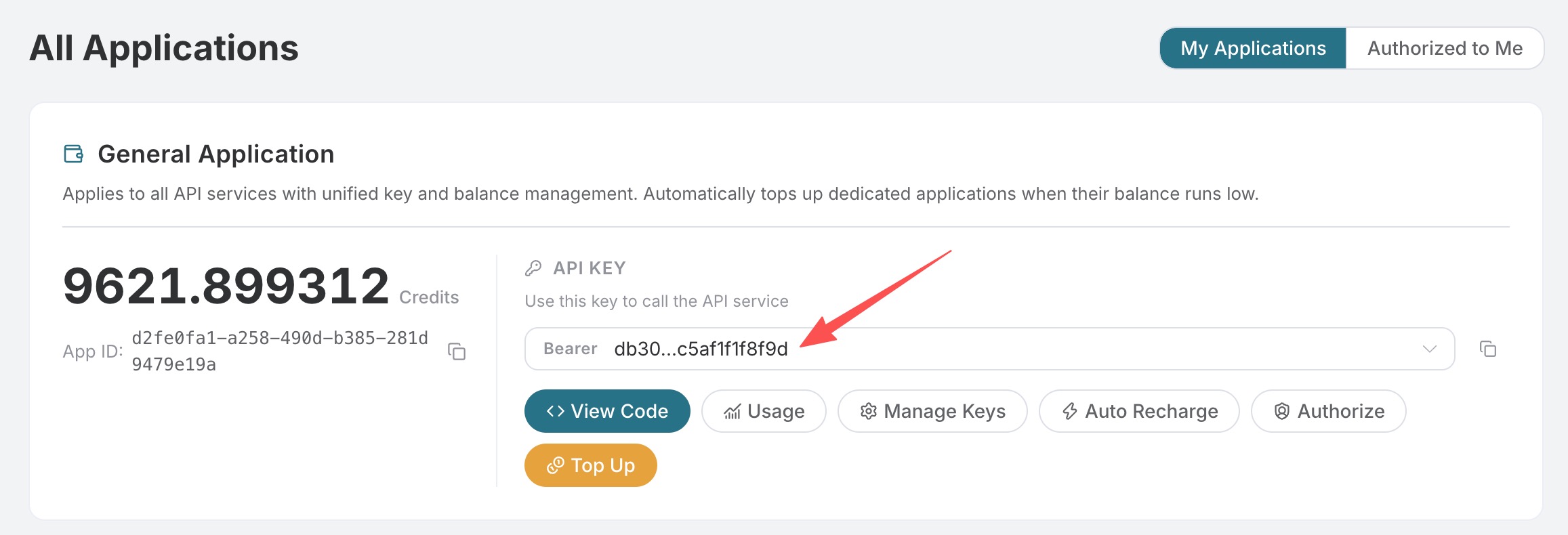
If you have not yet logged in or registered, you will be automatically redirected to the login page where you will be invited to register and log in. After completion, you will automatically return to the current page.
One API Token can call all platform services; there is no need to apply separately for each service. Your first application includes free credits for a free trial; when credits are insufficient, you can recharge your general balance in the Console.
📘 Full documentation: HappyHorse Videos API →
¶ Action Types
action determines the generation mode for this request:
generate: Text-to-video, the default action, supportshappyhorse-1.0-t2vandhappyhorse-1.1-t2v, and requiresprompt.image_to_video: First-frame image-to-video, supportshappyhorse-1.0-i2vandhappyhorse-1.1-i2v, and requiresimage_url.reference_to_video: Reference-image-to-video, supportshappyhorse-1.0-r2vandhappyhorse-1.1-r2v, and requirespromptand 1–9image_urls.video_edit: Video editing, supportshappyhorse-1.0-video-edit, and requirespromptandvideo_url; optionally, 0–5 reference images can be provided throughimage_urls.
Each action uses the 1.1 model by default; video_edit currently only has happyhorse-1.0-video-edit.
¶ Basic Usage
Text-to-video only requires prompt. You can also specify parameters such as resolution, ratio, and duration:
{
  "action": "generate",
  "model": "happyhorse-1.1-t2v",
  "prompt": "A cinematic white horse lifts its head, the mane moves gently in the sunrise wind, slow camera push in, warm film lighting",
  "resolution": "720P",
  "ratio": "16:9",
  "duration": 5
}
An example response is as follows:
{
  "success": true,
  "task_id": "27837f92-d1c1-4db4-ad9a-4e6e81d9f6c1",
  "trace_id": "6071ab5e-2f37-46f0-9e07-f1e378112e69",
  "data": [
    {
      "id": "9650580f-6d9e-4bc1-823a-29011790c5cb",
      "video_url": "https://cdn.acedata.cloud/assets/examples/happyhorse/27837f92-d1c1-4db4-ad9a-4e6e81d9f6c1-2c108ce23554.mp4",
      "state": "succeeded",
      "duration": 5,
      "resolution": "720P",
      "ratio": null
    }
  ]
}
Field descriptions:
success: Whether this request was successful.task_id: The task ID on the WorldAi side, which can be used to query task status.trace_id: The trace ID for this request, used for troubleshooting.data: Video result list.id: The task ID on the HappyHorse side.video_url: The CDN URL of the generated video.state: Task status, optionallypending/succeeded/error.duration: The billed video duration, in seconds; forvideo_edit, it is the combined duration of the input and output videos.resolution: Output resolution.ratio: Output aspect ratio.
The corresponding CURL code is as follows:
curl -X POST 'https://api.worldai.chat/happyhorse/videos' \
-H 'authorization: Bearer ${bearer_token}' \
-H 'accept: application/json' \
-H 'content-type: application/json' \
-d '{
  "action": "generate",
  "model": "happyhorse-1.1-t2v",
  "prompt": "A cinematic white horse lifts its head, the mane moves gently in the sunrise wind, slow camera push in, warm film lighting",
  "resolution": "720P",
  "ratio": "16:9",
  "duration": 5
}'
The corresponding Python code is as follows:
import requests

url = "https://api.worldai.chat/happyhorse/videos"

headers = {
    "accept": "application/json",
    "authorization": "Bearer {token}",
    "content-type": "application/json",
}

payload = {
    "action": "generate",
    "model": "happyhorse-1.1-t2v",
    "prompt": "A cinematic white horse lifts its head, the mane moves gently in the sunrise wind, slow camera push in, warm film lighting",
    "resolution": "720P",
    "ratio": "16:9",
    "duration": 5,
}

response = requests.post(url, json=payload, headers=headers)
print(response.text)
¶ First-Frame Image-to-Video
When using image_to_video, image_url will be used as the first frame of the video. The output aspect ratio will follow the first-frame image as closely as possible, so this action does not require ratio.
{
  "action": "image_to_video",
  "model": "happyhorse-1.1-i2v",
  "image_url": "https://cdn.acedata.cloud/b1c82e4937.png",
  "prompt": "A cinematic white horse lifts its head, the mane moves gently in the sunrise wind, slow camera push in, warm film lighting",
  "resolution": "1080P",
  "duration": 5
}
¶ Reference-Image-to-Video
When using reference_to_video, image_urls can include 1–9 reference images. You can use character1, character2, and similar references in the prompt to refer to images in the corresponding order.
{
  "action": "reference_to_video",
  "model": "happyhorse-1.1-r2v",
  "prompt": "character1 walks forward through a sunrise meadow with the warm leather and gold trim style from character2",
  "image_urls": [
    "https://cdn.acedata.cloud/b1c82e4937.png",
    "https://cdn.acedata.cloud/eb75d88a3f.png"
  ],
  "resolution": "720P",
  "ratio": "16:9",
  "duration": 5
}
¶ Video Editing
The output duration and frame format of video_edit inherit from the source video. Passing duration or ratio will not change them; the frame format of image-to-video also inherits from the source image. Editing fees are calculated based on the combined duration of the input and output videos.
When using video_edit, you must provide the video to be edited through video_url and the editing intent through prompt. Optional image_urls will be used as reference images, for example, for outfit changes, style transfer, or local replacement. audio_setting can optionally be auto or origin, where origin means keeping the original video audio.
{
  "action": "video_edit",
  "model": "happyhorse-1.0-video-edit",
  "prompt": "Apply the warm leather and gold trim style from the reference image while preserving the original camera motion",
  "video_url": "https://cdn.acedata.cloud/assets/examples/happyhorse/27837f92-d1c1-4db4-ad9a-4e6e81d9f6c1-2c108ce23554.mp4",
  "image_urls": [
    "https://cdn.acedata.cloud/eb75d88a3f.png"
  ],
  "resolution": "720P",
  "audio_setting": "auto"
}
¶ Asynchronous Callback
Video generation requires a certain amount of processing time. If you do not wish to keep a long connection waiting, you can pass in callback_url. In this case, the API will immediately return task_id, and after the task is completed, it will POST the final result to this address:
{
  "action": "generate",
  "prompt": "A horse running through a snowy forest",
  "duration": 5,
  "callback_url": "https://your-domain.com/callback/happyhorse"
}
The immediately returned result is as follows:
{
  "task_id": "b8976e18-32dc-4718-9ed8-1ea090fcb6ea"
}
If you only wish to poll and do not need a callback, you can also pass in "async": true, and then query the task result through the HappyHorse Tasks API.
¶ Billing Information
HappyHorse charges based on output video duration and resolution:
720P: as low as approximately $0.105 / second.1080P: as low as approximately $0.18 / second.video_edit: charged based on the combined duration of the input video and output video; the actual billable duration is subject to the statistics after task completion.
Failed tasks are not charged and do not consume free credits.
¶ Error Handling
When there is an issue with the request, the API will return the corresponding error code and description. Common ones are as follows:
400: Invalid request parameters, for example, the action does not match the model,prompt/image_url/video_urlis missing, ordurationexceeds the range of 3–15 seconds.401: Authentication failed; the token is invalid or does not match the API.403: Insufficient balance, or the prompt was rejected because it triggered content moderation.429: Requests are too frequent, triggering rate limiting; please try again later.500: Internal server error or generation failure.